Case packs
Wine collection: minimum 6, in multiples of 6 (counted across all eligible items)
4 bottles of red plus 2 of white passes. 8 bottles is blocked with "Buy in multiples of 6."
Tab Promo lets you set minimum, maximum and multiple-of quantity rules, and Shopify blocks checkout with your own message until the cart meets them. You can count quantities per variant, per product, or across a whole group of products, so rules like "buy in cases of 6" or "limit 2 per customer order" take a few fields. A rule can live on its own or in the same campaign as a discount.
See it work
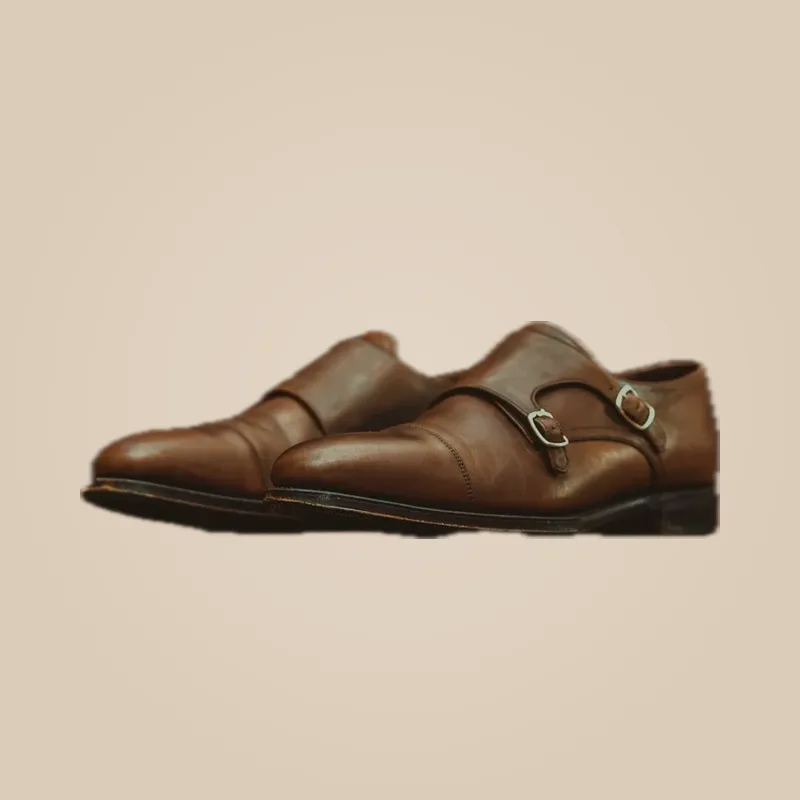
Checkout
 Monk Strap LoaferLimited run · Size 393$960.00
You can buy up to 2 of this item. Reduce the quantity to continue.
Ship to Paris 75003
Delivery Standard · Free
Payment Card •••• 4242
Subtotal$960.00
Total$960.00
Pay now
Checked by Shopify checkout before payment
Checkout
Blocked
3 in the cart — the limit is 2
Examples
Wine collection: minimum 6, in multiples of 6 (counted across all eligible items)
4 bottles of red plus 2 of white passes. 8 bottles is blocked with "Buy in multiples of 6."
Sneaker drop product: maximum 2 per variant
A cart with 3 pairs in one size cannot check out until one is removed.
B2B company customers: minimum 12 per product
A company buyer with 10 of one product sees "Add at least 12" at checkout.
Same campaign: 20% off Bulk rice, and maximum 10 per order
Shoppers get 20% off up to 10 bags; an 11th bag blocks checkout.
Setup
Good to know
Plan: Free — up to 20 promotion orders a month; Starter — $49/month for unlimited orders. Compare plans
FAQ
No. The Purchase quantity requirements template creates a rule with no discount at all.
Yes. When you publish a campaign with both, Tab Promo turns on the quantity limit first, then the discount. When it's switched off, the discount goes first.
Not inside the same campaign. Quantity rules cannot be part of a code-discount campaign; put them in an automatic or quantity-only campaign.
Yes. Discounted units still count. Exclude products from the scope if they should not count.
No. Tab Promo's plans don't require Shopify Plus, and purchase rules are included on every plan, including Free.
More with Tab Promo